.png)
Custom Placement - Finding a CSS selector
Some of our sections have an optional field where you can tell the section exactly where to sit on your page.
It might be called Custom placement, CSS selector, or Insert above element.
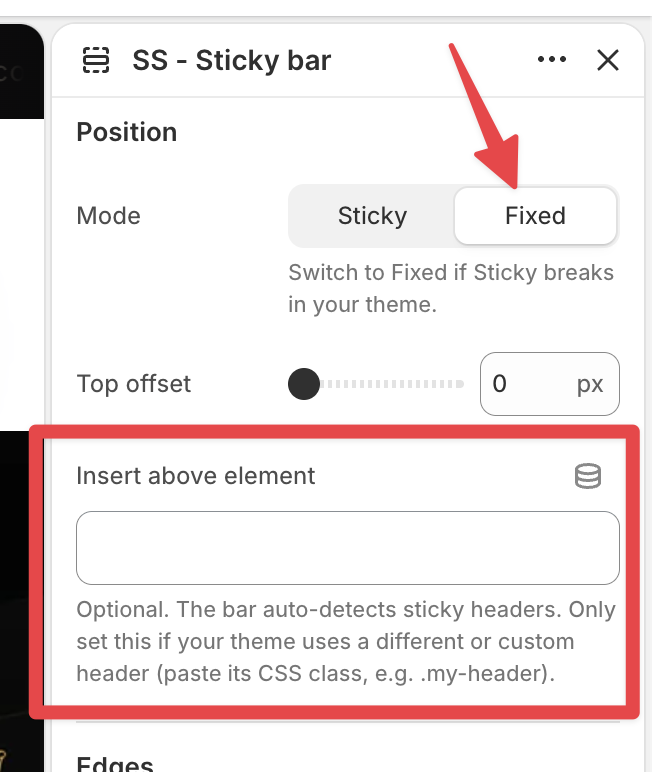
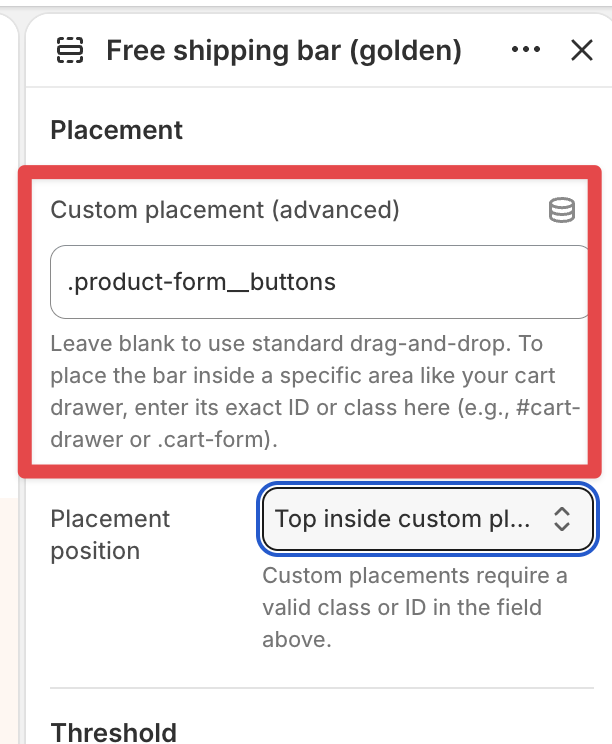
To use it, you need the "name" of the spot on your page where you want the section to go.
Every part of your store (the header, the cart drawer, the add to cart button) has a name hidden in the page code. Finding it takes about a minute, and you can't break anything by looking.
Most of the time you can leave this field empty. Our sections find the right spot automatically. Only use this if the automatic placement isn't working, or you want the section somewhere specific.
Step 1: Open the inspector
On Chrome, Edge, Firefox or Brave:
- Open your store in a normal tab (not the theme editor).
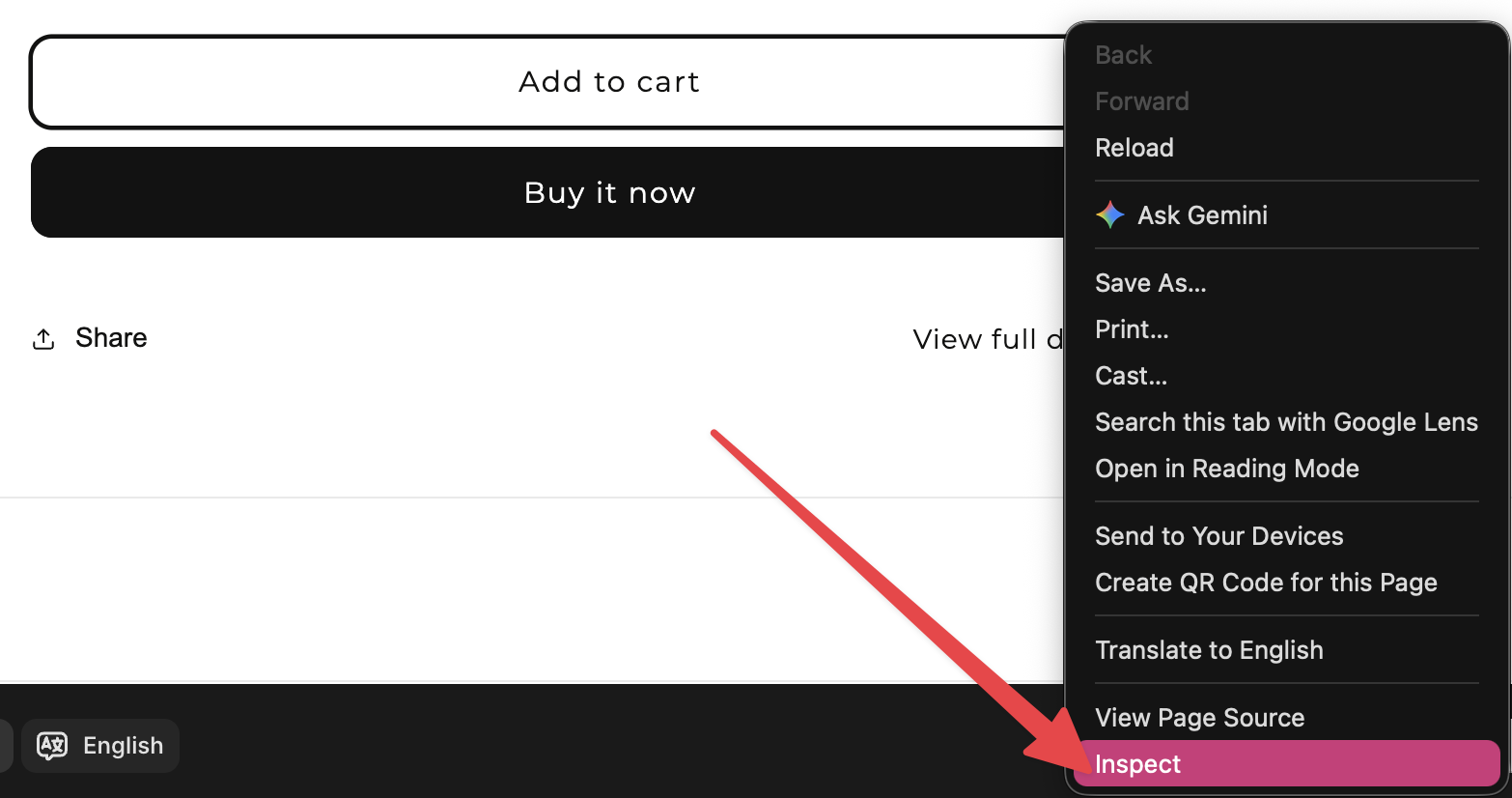
- Right-click the exact spot where you want the section to appear. For example, your header or your add to cart button.
- Click Inspect.
A panel full of code opens. Don't worry, you only need to read one line of it.
On Safari: Safari hides this feature by default. Go to Safari > Settings > Advanced and tick Show features for web developers. Now you can right-click anything and choose Inspect Element. (Honestly, if you have Chrome installed, it's a bit easier there.)
On your phone: this doesn't work on phones. Grab a laptop or desktop for this one.
Step 2: Read the highlighted line
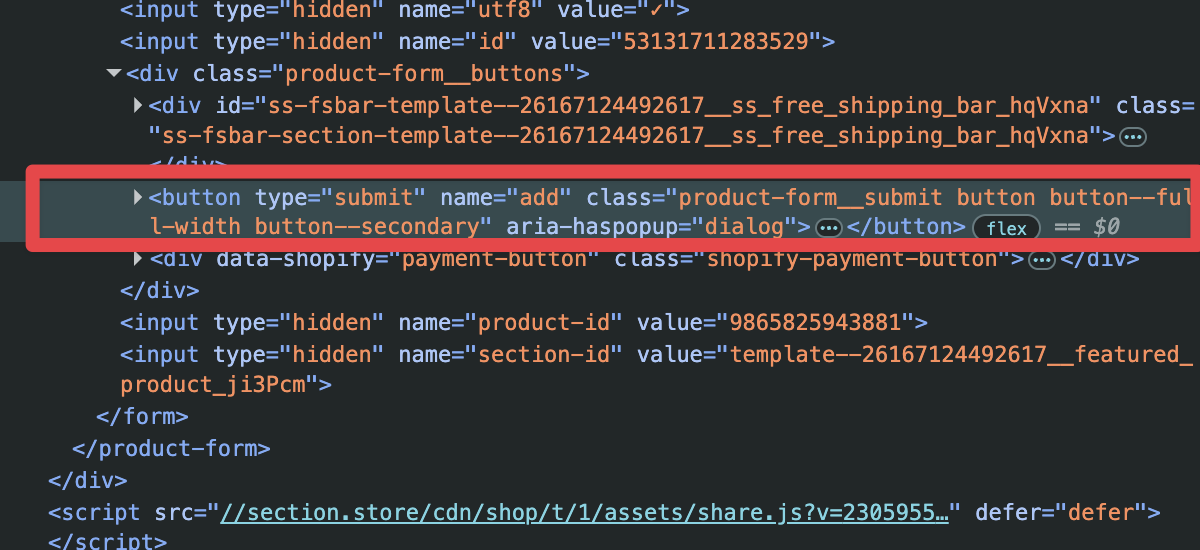
In the panel that opened, one line of code is highlighted. That's the thing you right-clicked. It looks something like this:
<div id="cart-drawer" class="drawer drawer--right">
You're looking for one of two words:
- id="..." : the name inside the quotes is an ID
- class="..." : the name inside the quotes is a class
Step 3: Turn it into a selector
This is the only rule you need to remember:
- If you found an id, put a # in front of it:
#cart-drawer - If you found a class, put a . (dot) in front of it:
.drawer
If the class has several words separated by spaces, that's actually several names. Pick the one that best describes the thing (like cart-drawer or header ) and put a dot in front of just that one.
Step 4: Paste it into the section
Go to your theme editor, open the section's settings, and paste your selector into the field. Save, then check your store. Done.
A few tips
- IDs are better than classes. An ID belongs to one element only, so it always lands in the right spot. Use the class only if there's no ID.
- Pick readable names. Something like
.cart-draweris great. Something like.x7f-39skais computer-generated and can change when your theme updates, so avoid those. - Spelling counts. One typo and nothing happens. Copy and paste instead of typing it out.
Nothing showing up?
- Double-check the # or the dot.
cart-drawerdoes nothing,#cart-drawerworks. - Make sure there's no extra space before or after what you pasted.
- If you picked a class, try a different one from the same line, or go one level: in the inspector, click the line just above the highlighted one and use its name instead.
- Still stuck? Send us a message with your store URL and where you want the section, and we'll find the selector for you. It takes us two minutes.