.png)
Make a Section Match Your Theme (Fonts, Colors, Buttons)
Just added a section and it looks a little plain or off brand? Normal, and quick to fix. Our sections carry their own complete design, so they do not automatically copy your theme's fonts and colors. A few minutes in the settings gets them matching.
Fonts
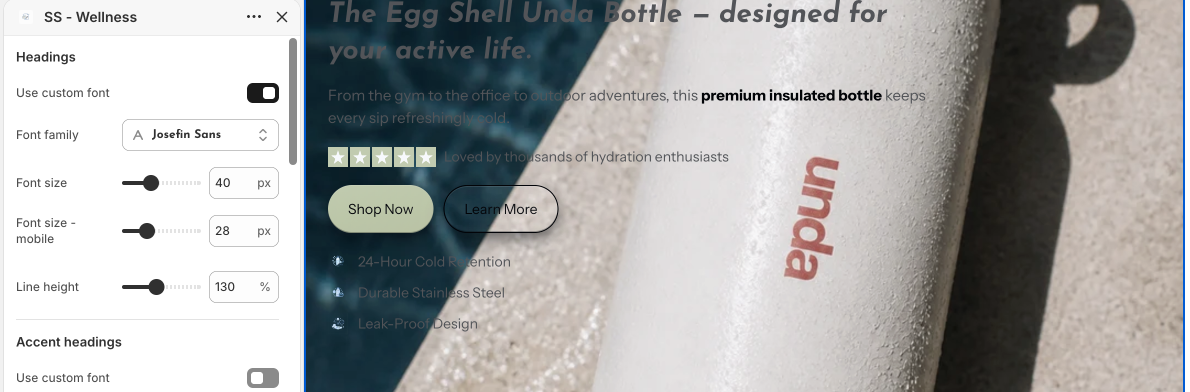
Open the section's Typography settings. Most sections have a custom font toggle with a font picker. Choose the same font your theme uses and the section stops standing out.
Colors
Set the background, text and accent colors under the Colors settings. Use your exact brand color codes if you have them. You can copy a color code from your theme settings under Theme settings, then Colors.
Buttons
Match the button background, text color and roundness to your theme's buttons. If your theme uses square corners, set the section's button roundness to 0. If it uses pills, raise it until they match.
On the new Horizon theme
Horizon leans heavily on saved brand styles, so fresh sections can look extra plain there. Same fix, and the article below covers Horizon specifics.
Still cannot get something to match? Email daniel@section.store or help@section.store with your store URL and the section name. We match it for you.