.png)
Why Isn't My Change Showing? (Cache and Previews)
You changed a setting, hit save, and the live store looks the same. Nine times out of ten nothing is broken. Run through this list.
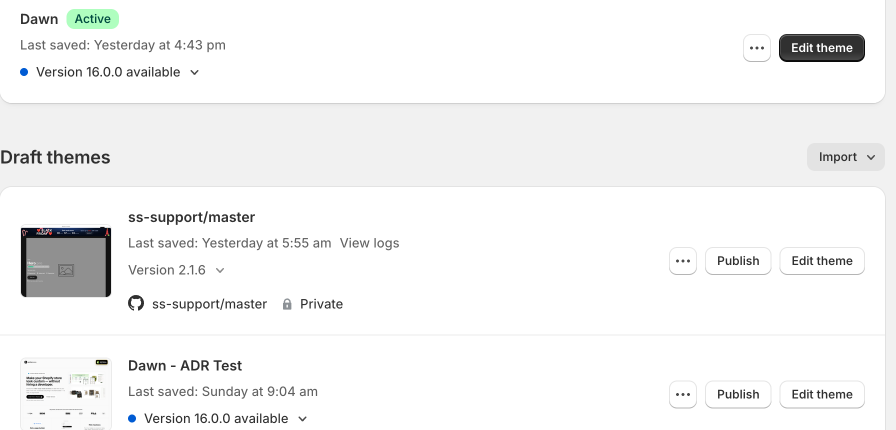
1. Are you editing the live theme?
Shopify lets you keep several themes. If you edited a draft or duplicate theme, the live store will not change. In the theme editor, check the theme name at the top center. Your live theme is the one marked Active in the theme list.
2. Are you on the right template?
Product sections live on a product template. If you edited Default product but the product you are viewing uses a different template, the change will not appear on it. The template dropdown at the top of the editor tells you which one you are editing.
3. Is it your browser remembering the old page?
Do a hard refresh on the storefront. On Windows press Ctrl and F5. On Mac press Cmd, Shift and R. Or open the page in a private window. Shoppers without your cached copy already see the new version.
4. Still nothing?
Email daniel@section.store or help@section.store with your store URL, the section name and what you changed. We will check it from our side.