.png)
Create Dynamic Reviews Blocks for Every Product Page
Pre-requisites:
Before you begin, ensure you have:
- Dynamic Content & Settings Per Product
- Dynamic fields: Metafield and Metaobjects
- Product Variant Metafields/Metaobject Guide
Overview
By using product metafields and connecting them to your Reviews block, you can dynamically show different customer reviews per product page without creating product templates in your theme editor.
Step 1: Create a Product Metafield Definition
- In your Shopify admin, go to Settings.
- Navigate to Metafields and metaobjects.
-
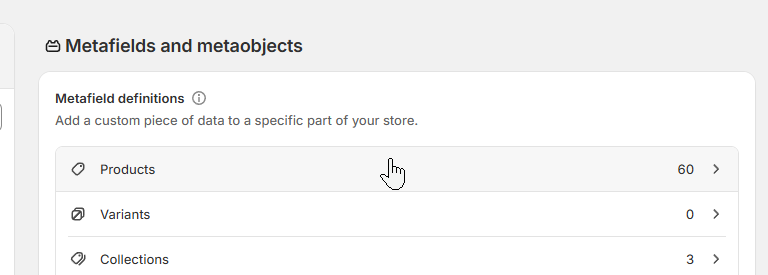
Under Metafield definitions, click Products.
-
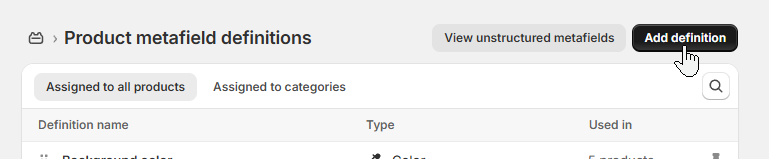
Click Add definition.
-
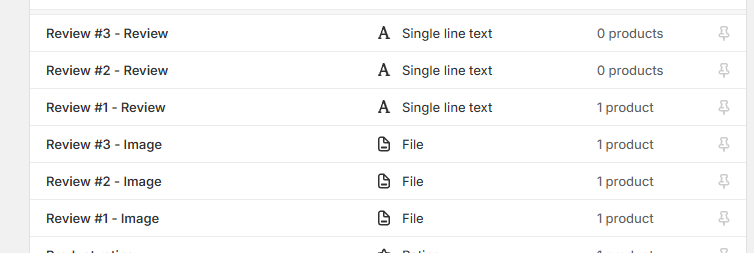
In the new definition, you have to follow the fields per type:
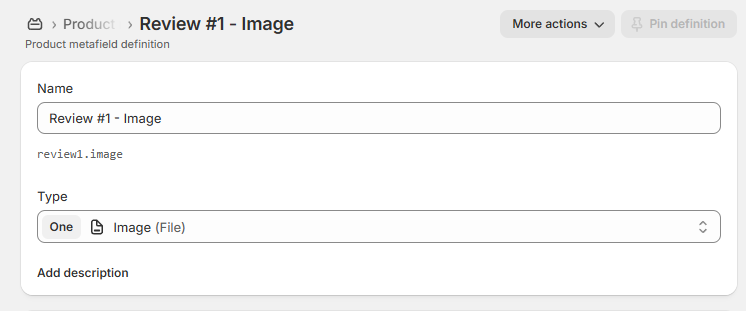
For review image:
- Name: Review #1 - Image (Required).
- Namespace and key: review1.image (You have to click the namespace first to edit it) (Required).
- Type: Image (File) and set the number of fields to One.
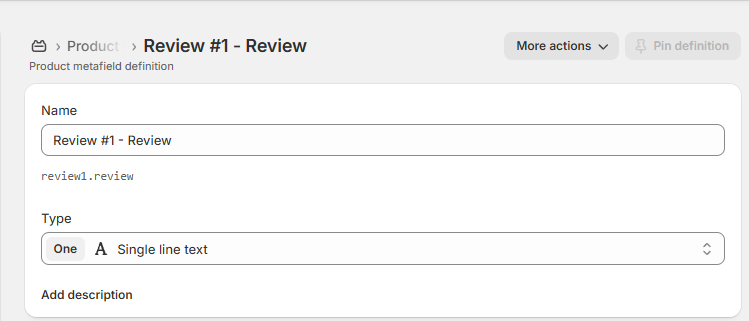
For review content:
- Name: Review #1 - Review (Required).
- Namespace and key: review1.review(You have to click the namespace first to edit it) (Required).
- Type: Single line text and set the number of fields to One.
- Double-check all fields, then click Save.
-
Repeat the same steps from 1-6 for the Reviews #2 and Reviews #3. Make sure to change the number based on the field you're creating.
Step 2: Connect the Metafield to Your Reviews Block
- In your Shopify admin, open the Theme editor.
-
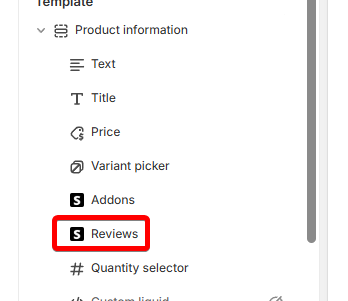
Select the Reviews block.
-
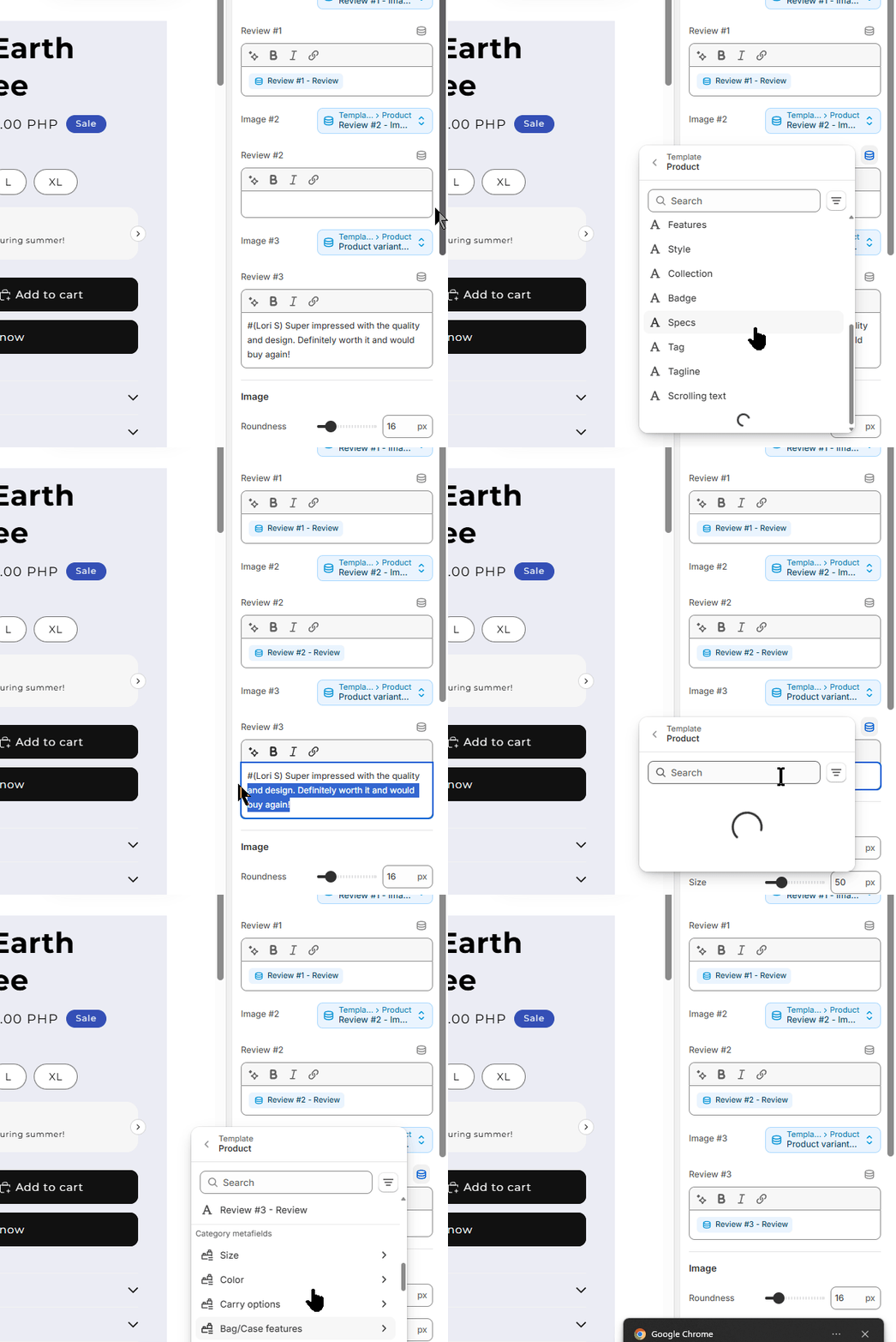
For each field, assign the respective metafield. For example, for Image #2, select "Review #2 - Image."
- Save your theme settings.
Step 3: Add Metafield contents to the Products
- Go to Products in your Shopify admin.
- Choose any product and click it.
- Scroll down to Product metafields.
-
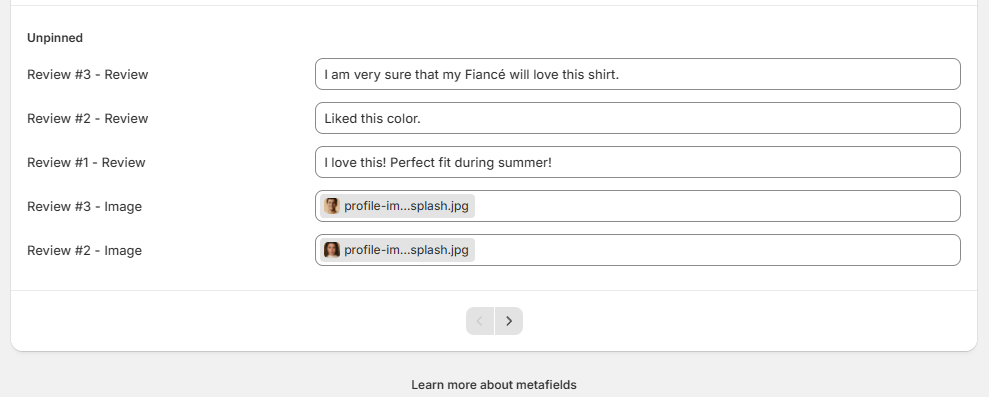
Find the metafield you created and fill up those contents and assign images to each field respectively.
- Click Save.
- Repeat the steps 1-5 for other products.
Tip: If you can’t find your metafield, you may have too many pinned definitions. Click View all to see the full list. You can go to the next page to see your metafields.
Expected output:
After you follow the steps above, you'll be able to display the dynamic reviews block on the product page. Take note that these contents do not come from the texts from the theme editor, but their product metafields.

If you have any questions, feel free to contact us. We're always here to help.