.png)
Assign a product template to multiple products in Shopify
Important note
- The template must already exist in the current live theme, otherwise it will not appear in the Template dropdown.
- If you only need to update one product, open that product directly and change its template from the product page.
-
See this instead for simple single assignments
- In Shopify admin, go to Products.
- Select the products you want to update.
- If you want to update all products in your store, tick the checkbox at the top of the product list, then click Select all in this store.
-
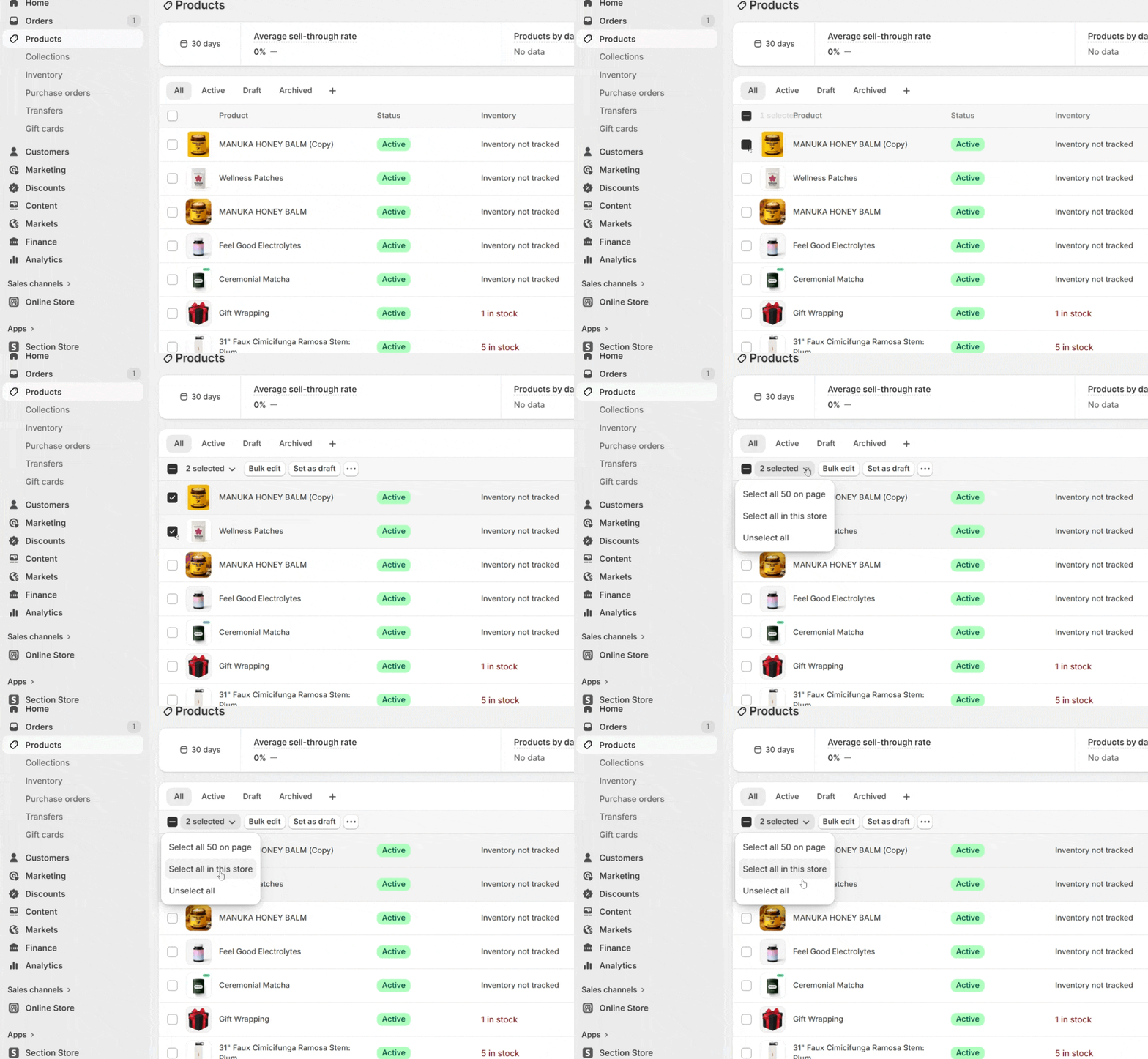
- Click Bulk edit.
- In the bulk editor, click Columns.
- Under General, enable Template.
-
- In the Template column, choose the template for the first product.
- Use the small fill handle on that cell to drag the same template down to the other products.
-
- Click Save.

